
Article
How to Remove a Repost on TikTok (iPhone and Android)
Remove a TikTok repost from the video or find it in your repost tab. See what removal changes, what it cannot undo, and how to troubleshoot a missing option.
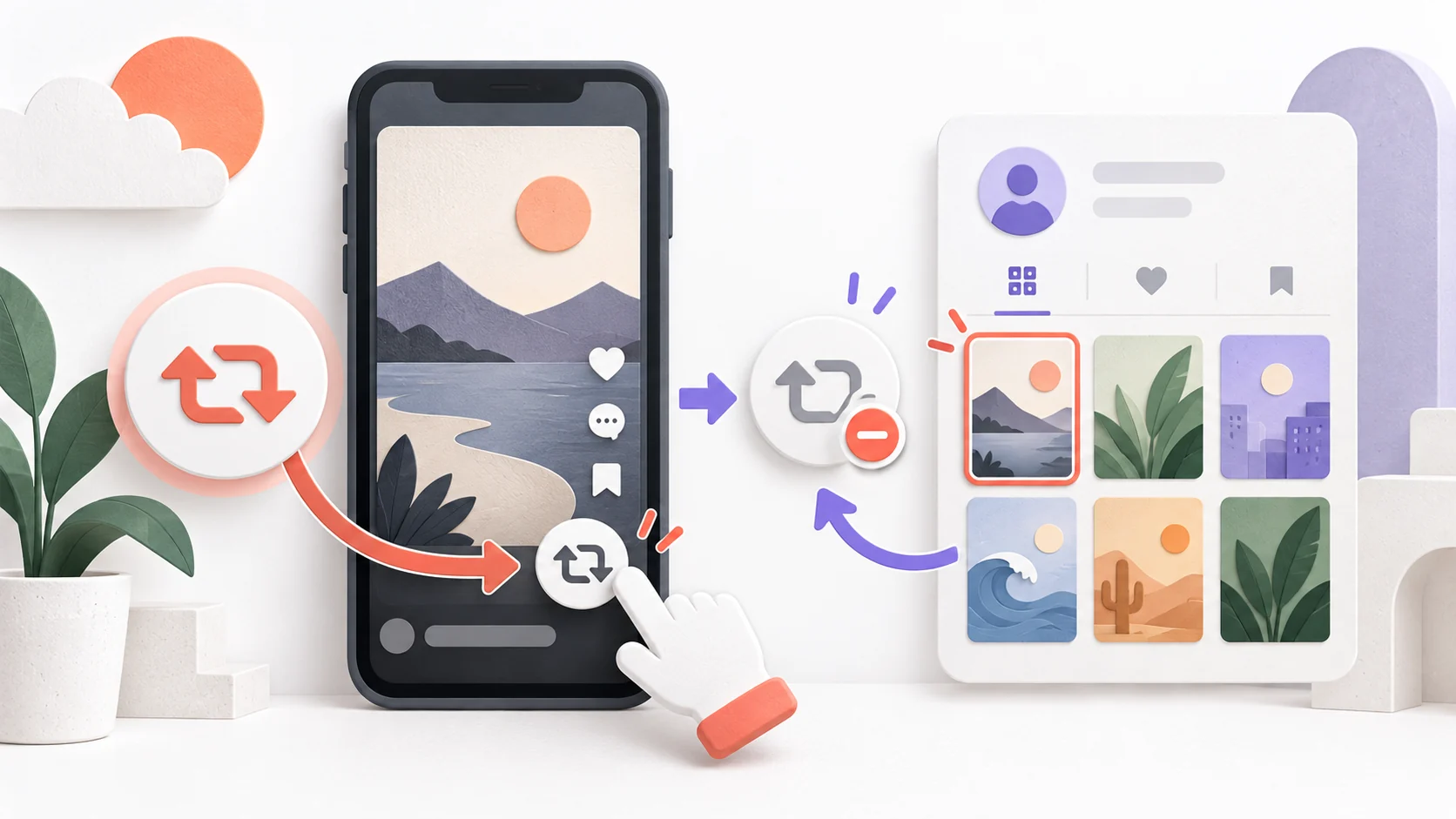
To remove a TikTok repost, open the video you reposted, tap Share, then choose Remove repost. If you cannot find the video in your feed, check the Repost tab on your TikTok profile and open it there. TikTok also documents a press-and-hold removal option on the video. These are steps in the TikTok app; the exact look of a button may differ by device or app version. TikTok documents the available paths in its Repost Help.
Removing your repost changes your sharing of someone else's video. It does not delete the creator's original post, undo a separate message in which you sent its link, or erase the fact that another person may already have seen your repost. If your concern is privacy, read the visibility section below before assuming the repost was hidden.
Remove a repost from the video
The shortest route works when the reposted video is already open:
- Open the TikTok app while signed in to the account that reposted the video.
- Open that video. If you need to locate it, visit your profile and look under the Repost tab.
- Tap Share on the video.
- Select Remove repost.
- Return to the video or your repost tab if you want to check whether the repost label or profile entry is still shown. Allow the app a moment to refresh before concluding that the action failed.
TikTok lists two other ways to reach the same removal action from the video. You can press and hold the video and select Remove repost. Or, where your profile photo appears on the reposted video, tap it, open the Reposted label, and choose Remove repost. Use whichever control appears in your app; there is no need to change your account privacy settings to remove one repost.
Find a repost when you no longer have the video open
An accidental repost may disappear from the part of the feed you were watching. The profile is a more reliable place to start than scrolling indefinitely. TikTok says a reposted video can be found on your profile under the repost tab. Open Profile, find that tab, locate the video, and use Share → Remove repost on the video itself.
Check that you are viewing the same account that made the repost. A creator, business, or personal account you also manage will have its own activity. If you remember the video's creator or subject, finding the original post through TikTok search can be another way to reach the video. Once it is open, look for the repost state on your signed-in account before trying removal.
If the original video is unavailable to you, the documented per-video controls may be unavailable too. TikTok's public repost guidance does not explain every reason a video or control might be missing, so do not assume that the repost was automatically removed. If your repost tab and the video are both inaccessible, use TikTok's in-app problem-reporting flow rather than granting a third-party tool access to your account.
What removal changes, and what it cannot undo
A repost is TikTok's way to share a video with friends and your community in their For You feed. TikTok labels a repost with the reposter's profile photo and nickname. Removing the repost is therefore an action on your recommendation of that video. The person who originally posted the video still controls their own post, subject to TikTok's rules and the creator's choices.
TikTok's Help Center does not promise that removal reverses prior impressions in another person's feed. If you reposted something sensitive, treat any exposure that already occurred as possible.
TikTok's repost Help explains that private-account followers can see reposted content on the account's profile and in their For You feed. It does not describe reposts as invisible on the profile. A public account should not assume its reposts are private either. The simplest check is to review your own repost tab and account privacy status. Removing a specific repost and switching your whole account between public and private are different decisions.
If “Remove repost” is missing
First, confirm that you are on the video you reposted and signed in to the same account. A Repost action on a video may indicate that this account has not reposted that video, but TikTok's interface can vary, so use your profile's repost tab as a second check. If you have more than one account, switch back to the one whose tab contains the video.
Next, try TikTok's other documented entry points: press and hold the video, or tap your profile photo and the Reposted label if those appear on it. The removal action belongs to the video, not to a universal list of account privacy controls. If the interface still will not update, check that the app and your device software are current and restart the app. TikTok recommends these as basic troubleshooting steps for app problems.
If the problem continues, report it inside TikTok. From Profile, open the menu, then Settings and privacy → Report a problem. Select the closest topic and explain which video and account are affected, without posting your password or private login details. TikTok can change menu labels and available support choices, so follow the prompts shown in your app. An external “bulk repost remover” is not needed to use the controls TikTok documents, and giving one account access creates an avoidable security risk.
Repost privacy is separate from removing a repost
TikTok's current repost Help does not document a universal Repost → Only Me setting, so do not rely on that idea to hide an existing repost. The documented action for taking back one repost is Remove repost from the video. For your account more broadly, TikTok has a separate public/private account choice in Settings and privacy → Privacy. Switching to private changes who can follow you and see content, but it is a broader account decision and is not a substitute for removing an unwanted repost.
Frequently asked questions
Does removing a repost delete the original TikTok video?
No. You are removing your repost of another creator's video. The creator's original post is a separate item under that creator's control. If the original video itself violates TikTok rules, TikTok provides a separate Report action; removing your own repost is not a report against the creator.
Will someone be notified when I remove my repost?
TikTok's public repost Help does not specify whether removal sends a notification. Do not assume that it sends one, or promise that nobody will notice. The person may already have seen the repost before you removed it. Use the action to change the repost state, not to guarantee secrecy about a prior share.
Can I remove all my TikTok reposts at once?
The current TikTok Help instructions describe removing a repost from the individual video. They do not document a bulk-removal control. For reposts you can find, open each video and use Remove repost. Be cautious with services claiming to clear a whole account if they ask for account credentials or permissions.
Where can I find my reposted videos?
TikTok says reposted videos appear under the Repost tab on your profile. Open a video from that tab if it no longer appears in your feed, then use one of the documented on-video removal options. A missing video or tab alone does not establish why the content is unavailable.
Can I prevent people from seeing a repost that was already shown?
You can remove the repost now, but TikTok does not promise to undo prior views or memories. Do not rely on a claimed feed-erasure effect. If the matter is sensitive, consider whether you also sent a separate link or message, which requires separate handling.
The practical check
Open the video from your profile's repost tab, choose Remove repost, and check the resulting state in the app. This resolves the question most people mean by “delete a TikTok repost” without changing their account or deleting the original video. If the option is absent after you verify the account and video, use TikTok's support path instead of guessing at a hidden privacy switch.